CamMicGo

Discord call test

Check your microphone in a real Discord call. Kamiko, our voice bot, joins a private channel with you, records 8 seconds of your voice, plays them back and shows you the results here, like the Teams test call.

The first time, Discord asks you to allow CamMicGo to add you to the test server.

How the test works

  1. Tick the box and press the button.

    CamMicGo
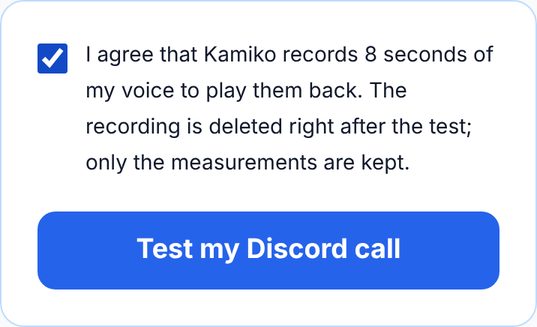
    CamMicGo screenshot: the consent box is ticked, with the sentence “I agree that Kamiko records 8 seconds of my voice to play them back.” Below it, the blue button “Test my Discord call”.
  2. Open Discord and join the voice channel.

    CamMicGo
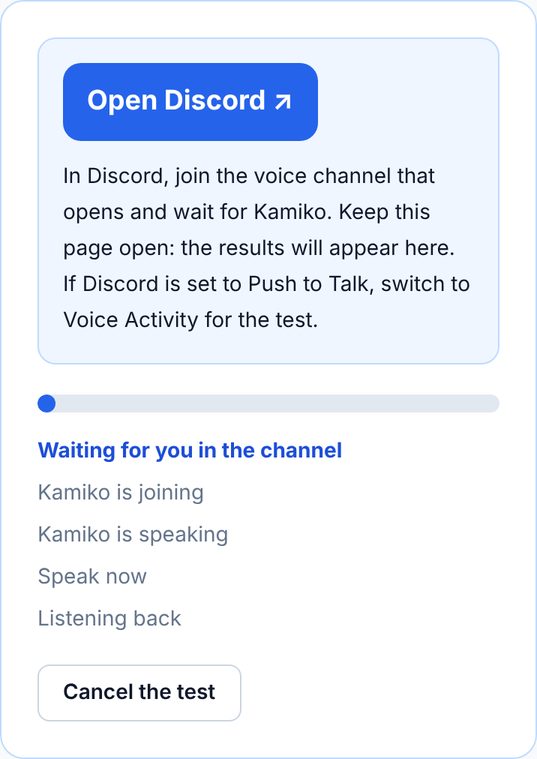
    CamMicGo screenshot during the test: a light blue panel with the button “Open Discord” and the advice to join the voice channel while keeping this page open. Below, an almost empty progress bar and the list of steps, the first one, “Waiting for you in the channel”, in blue, then the button “Cancel the test”.
    Discord
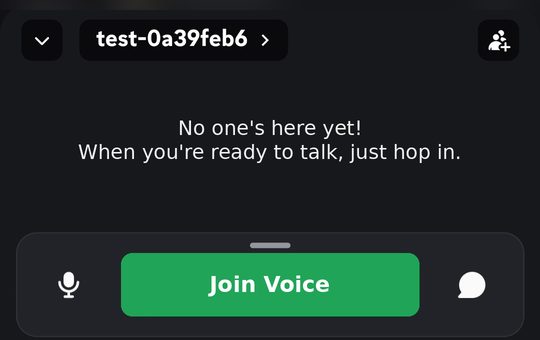
    Discord screenshot on a phone, in dark mode: at the top, the name of the test channel; in the middle, the message “No one's here yet!”; at the bottom, a large green button “Join Voice” between the microphone and chat icons. The rest of the screen is blurred.

    Join the voice channel

    Discord
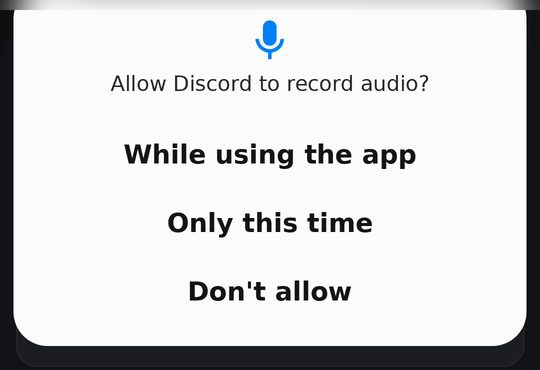
    Screenshot of a phone system window on a white background: a blue microphone icon and the question “Allow Discord to record audio?”, with three choices: “While using the app”, the one to pick, then “Only this time” and “Don't allow”.

    Allow the microphone (“While using the app”)

  3. Listen to Kamiko, then after the beep talk until the second beep.

    Discord
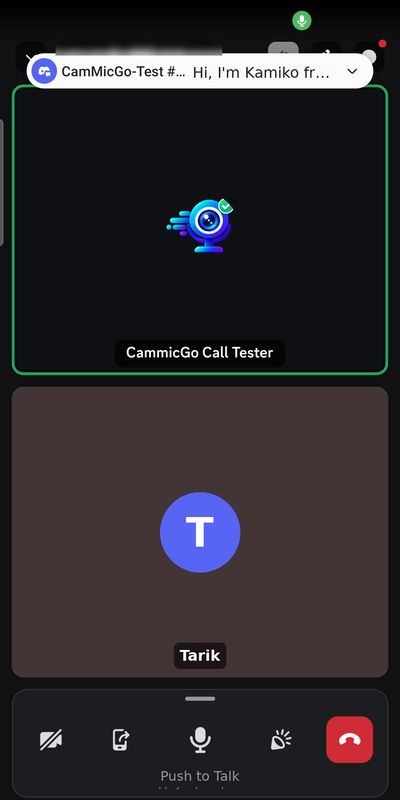
    Screenshot of the Discord call: at the top, a notification with Kamiko’s message; in the middle, the tile of the CamMicGo Call Tester bot, outlined in green because it is speaking; below, the user’s tile, a purple circle with the letter T and the name Tarik; at the bottom, the camera, screen share, microphone and soundboard buttons and the red hang-up button.

    Kamiko talks to you

    CamMicGo
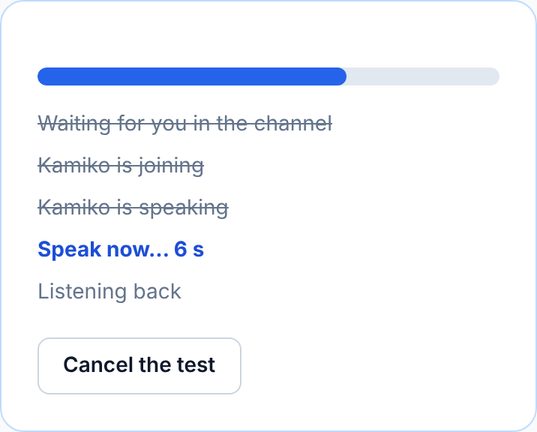
    CamMicGo screenshot during the recording: the blue progress bar is two-thirds full; the first three steps are crossed out, “Speak now” is in blue with a countdown in seconds, followed by “Listening back” and the button “Cancel the test”.
  4. Stay in the channel: Kamiko plays your voice back.

    Don’t leave the channel before the end: wait for “Test finished” and the link to your results.

  5. Come back here for your results.

    CamMicGo
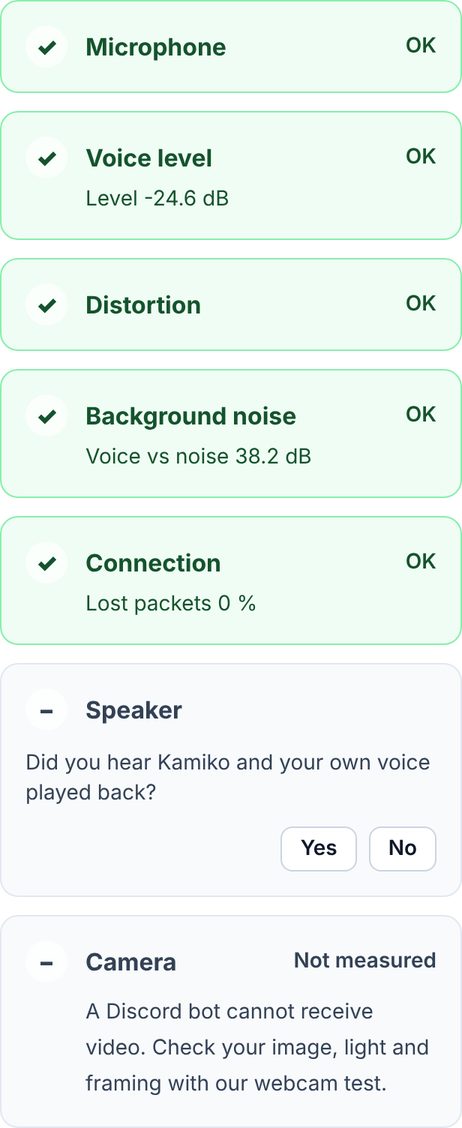
    Screenshot of the results on CamMicGo: five green cards with a tick and “OK”: Microphone, Voice level with the level in decibels, Distortion, Background noise with the voice-to-noise ratio, and Connection with 0 % lost packets. Then Speaker with the question “Did you hear Kamiko and your own voice played back?” and the Yes and No buttons, and Camera, “Not measured”, with a pointer to the webcam test.
Discord mic not working? Fixes for no sound, quiet, robotic or echoing voiceRead the guide →

No audio is stored: Kamiko keeps the recording in memory for the playback, then deletes it. Only the measurements above are saved, with your test.

CamMicGo is not affiliated with, sponsored or endorsed by Discord. Discord is a trademark of Discord Inc.