CamMicGo Guides
Discord mic not working? Fixes for no sound, quiet, robotic or echoing voice
Discord problems usually fall into four groups: nobody hears you, your voice is too quiet or cut, it sounds robotic, or people hear an echo. Each has different causes. Start with the checks for your symptom, then verify the result the way your friends will hear it.
1. Nobody hears you: check the device and permissions
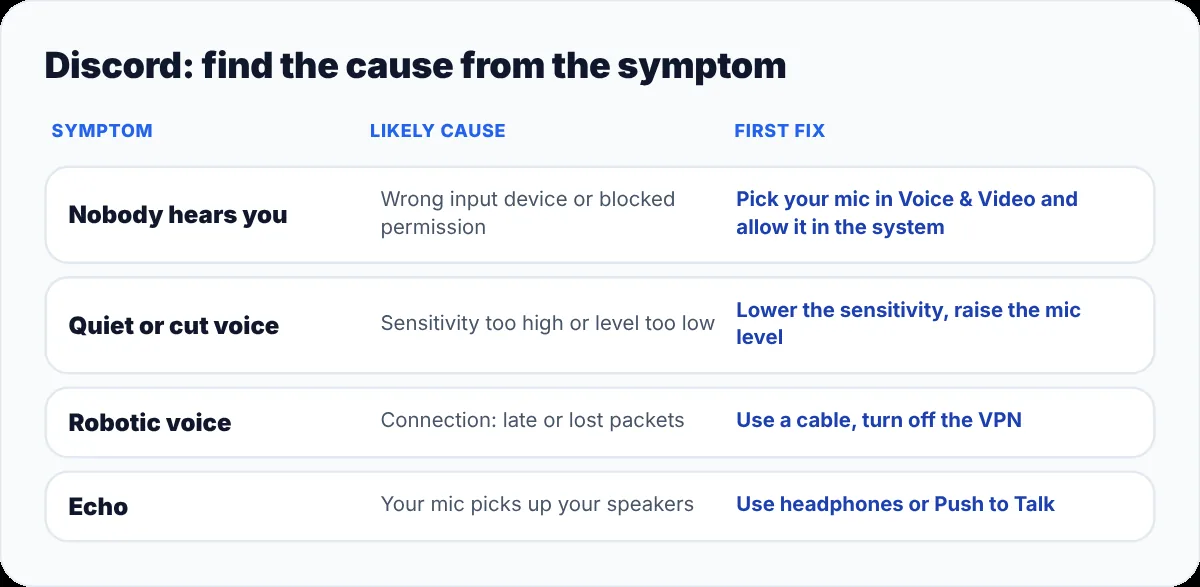
- In Discord, open User Settings → Voice & Video and choose your microphone as Input Device. “Default” can point to the wrong one, for example a webcam mic.
- Raise Input Volume and use “Let’s Check”: the bar should move when you speak.
- Windows: Settings → Privacy & security → Microphone, and allow desktop apps to use the microphone. macOS: System Settings → Privacy & Security → Microphone, then turn on Discord.
- In the browser version of Discord, allow the microphone for discord.com in your browser’s site settings.
- Fully restart Discord after changing a permission.
2. Your voice is cut or too quiet
- With Voice Activity, Discord only transmits when your level passes the input sensitivity. If the start or end of your words is cut, turn off automatic sensitivity and lower the threshold a little.
- Try Push to Talk if background sounds keep triggering your mic, or if you want full control.
- Raise the microphone level in your system sound settings, not only in Discord.
- Noise suppression can remove quiet speech along with noise. If you sound muffled, switch it to a lighter mode or turn it off to compare.
3. You sound robotic or choppy
A robotic or metallic voice is usually caused by the connection, not by the microphone: packets arrive late or get lost.
- Prefer a cable or move closer to the Wi-Fi router, and pause large downloads during the call.
- Disconnect a VPN and check that a firewall is not interfering, as Discord suggests for voice issues.
- Ask the server owner to try another voice region if everyone in the channel is affected.
4. People hear an echo
- Use headphones: an echo usually means your mic picks up the sound coming from your speakers.
- Keep speakers away from the microphone and lower their volume.
- Lower input sensitivity or use Push to Talk, two fixes Discord recommends for echo and feedback.
- Keep Echo Cancellation enabled in Voice & Video settings.
5. Still not working
- In Voice & Video, switch the audio subsystem between Standard and Legacy, then restart Discord.
- Use “Reset Voice Settings” at the bottom of the Voice & Video page to return to the defaults.
- Unplug and reconnect a USB microphone or headset, or try another port.
6. Hear what your friends really hear
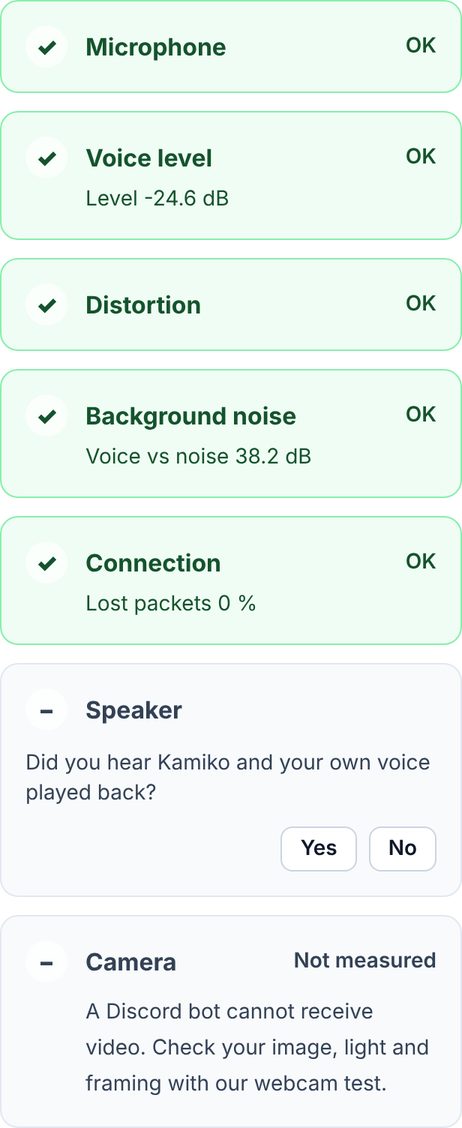
Discord’s “Let’s Check” plays your voice back on your own computer, before it goes through a call. To hear the real result, with Discord’s processing and the connection, use the CamMicGo Discord call test: Kamiko, our voice bot, joins a private Discord call with you, records 8 seconds of your voice and plays them back. No friend needed.