
CamMicGo Guides
How to test your Zoom or Teams call before a meeting
Zoom and Microsoft Teams both offer an official way to test your sound before a real meeting: Zoom has a test meeting page, Teams has a test call with a bot that records you and plays you back. Here is where to go, what happens at each step and what to do if something fails.
Zoom: join the official test meeting
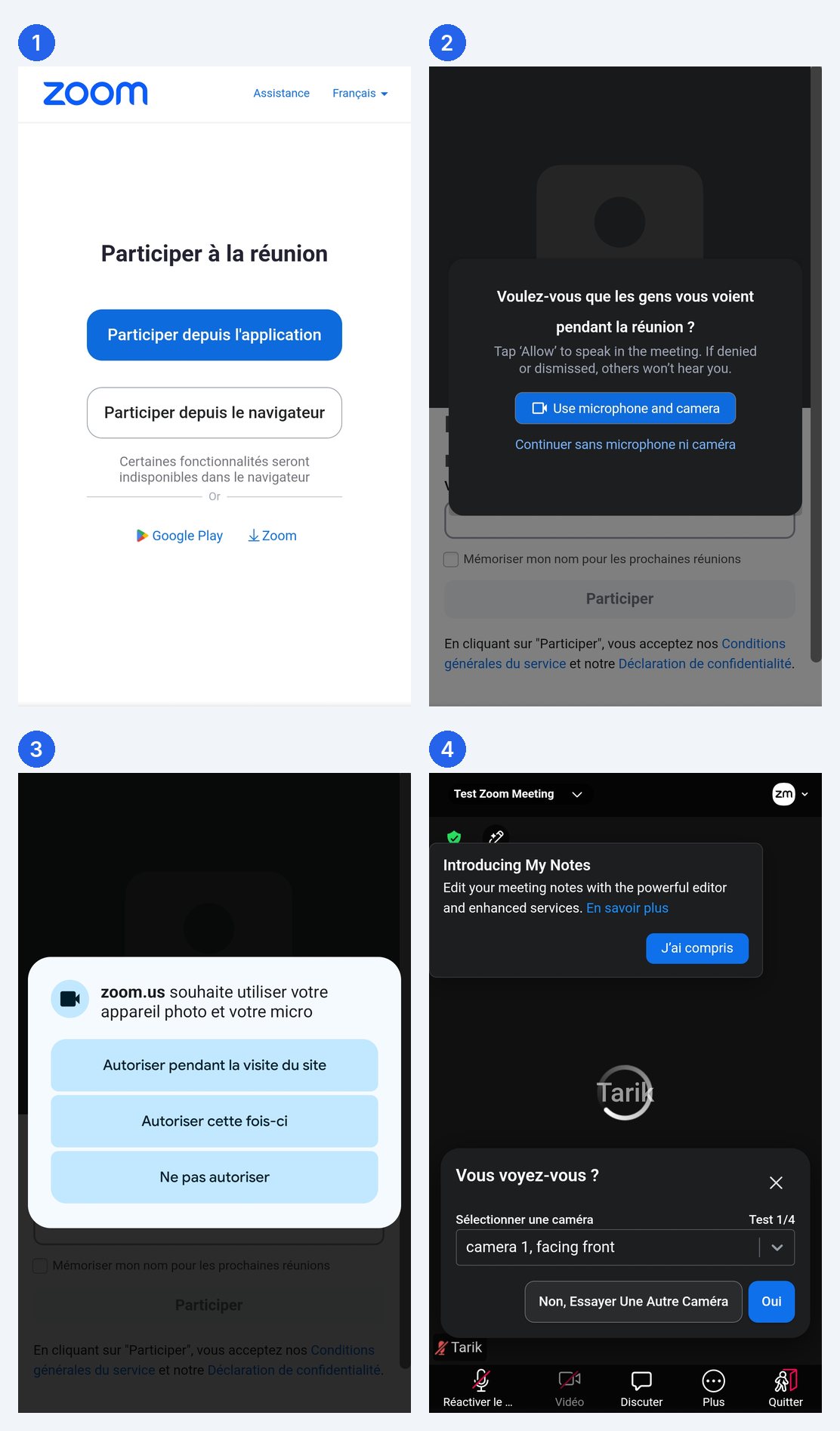
Open zoom.us/test in your browser. No account and no other participant are needed. You can open the Zoom app or join from the browser.
Open the Zoom test meeting (zoom.us/test)
- Go to zoom.us/test and click Join. Enter a name if Zoom asks for one.
- Choose to open the Zoom app, or join from your browser if you do not want to install anything.
- Speaker test: you should hear a ringtone. Answer Yes, or No to try another speaker or pick one from the list.
- Microphone test: say a few words. Zoom plays them back. Answer Yes if you hear yourself clearly, otherwise No to try another microphone.
- Join with computer audio. In the test meeting, try mute, start the camera, then Leave when you are done.
The choices you make during the test are kept for your next Zoom meetings. Ad blockers and pop-up blockers can stop the test page from opening the app: allow them for zoom.us or use the browser option.
Microsoft Teams: make a test call
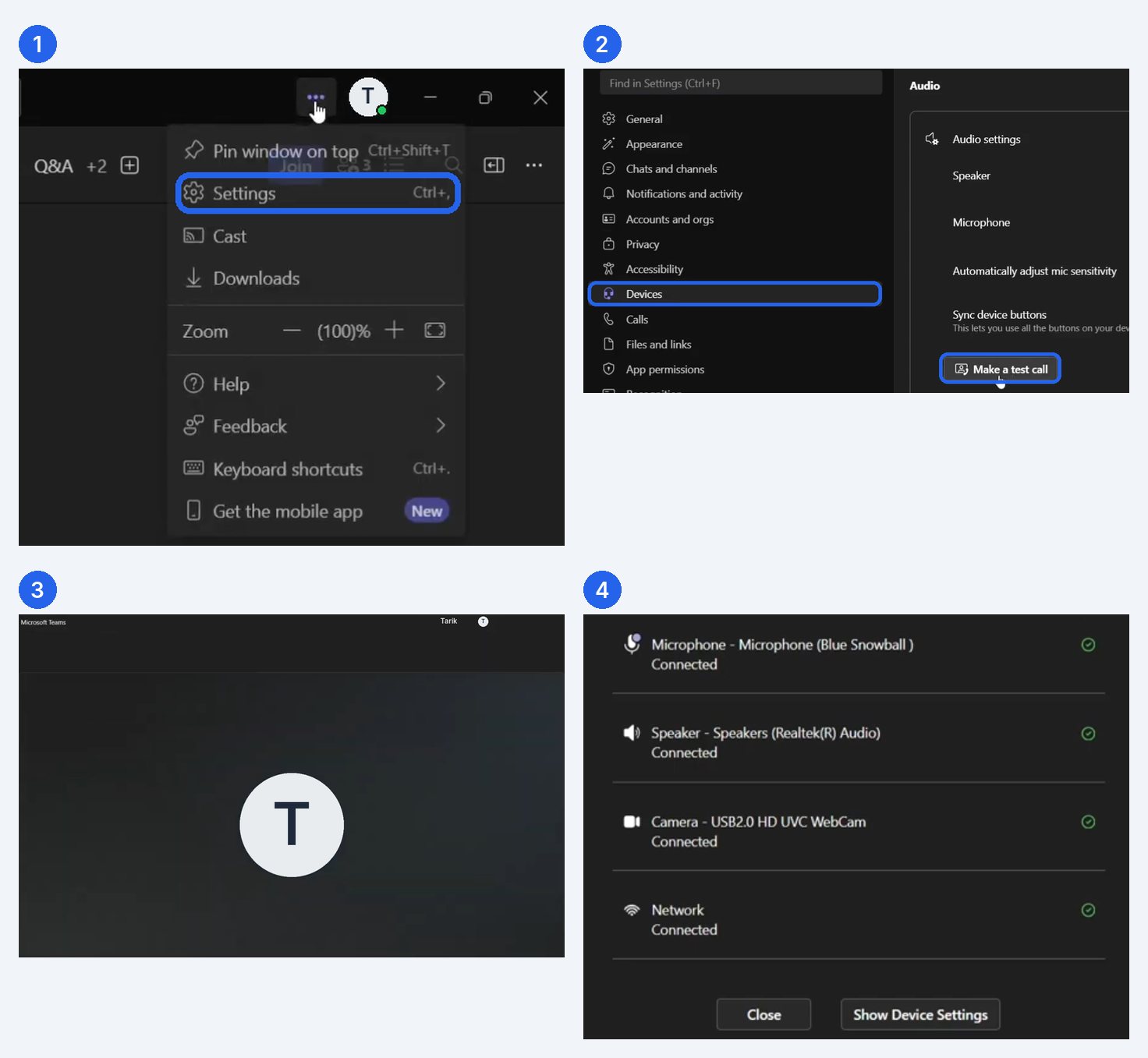
Teams has a built-in test call in the desktop app for Windows and Mac. A test bot gives instructions, records a short message and plays it back, then shows a summary of your microphone, speaker and camera. Microsoft says the recording is deleted right after the call.
Only with a work or school account: the free personal version of Teams does not have the test call. With a personal account, use the browser checks below or call yourself from another device.
Microsoft’s instructions for the test call
- In the Teams desktop app, select Settings and more (…) next to your profile picture.
- Select Settings.
- Open Devices.
- Under Audio settings, select Make a test call.
- Follow the bot: record your message, listen to the playback, then read the summary. Use the device settings link if you need to change something.
Menu names can vary slightly between Teams versions and languages; the test call is always in the device settings.
Teams on the web or on a phone
- In the browser or on a phone, use the screen shown before you join a meeting: turn your camera on to check the image and choose the microphone and speaker before selecting Join now.
- You can also run the browser checks below: they work on a computer, tablet or phone without installing anything.
One-minute check in your browser before any call
Before opening Zoom or Teams, you can check the three things that cause most call problems directly in your browser with CamMicGo.
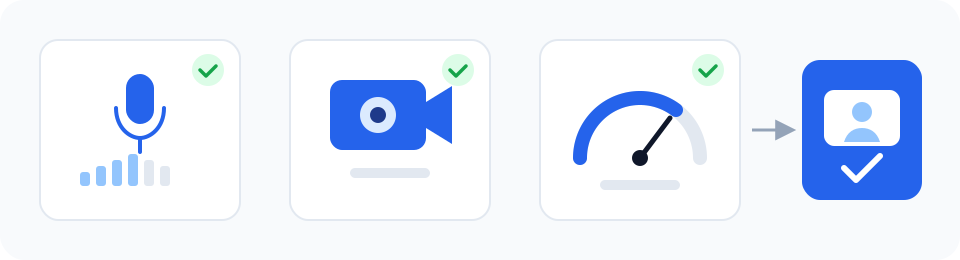
- Microphone test: speak and watch the level, then record a few seconds and listen to how others will hear you.
- Webcam test: check the image, the light and the framing.
- Internet test: look at upload speed and latency, which matter more than download for video calls.
If something does not work
- Make sure the right microphone and speaker are selected in the app: a headset plugged in after starting Zoom or Teams is sometimes ignored until you select it or restart the app.
- Check the permissions: on Windows, Settings › Privacy & security › Microphone and Camera; on a Mac, System Settings › Privacy & Security › Microphone and Camera.
- Close other apps that may be using the microphone or the camera.
- With a Bluetooth headset, sound quality drops when the microphone is active: a wired headset or the computer’s microphone may sound better.