
CamMicGo Guides
Camera not working in Teams or Zoom? Step-by-step fixes
When your camera works on your phone but not in Teams or Zoom, start by finding out whether the problem comes from the webcam or from the app. A quick test in the browser tells you in a few seconds. Then follow the steps for your app and system.
1. Test the camera outside the app
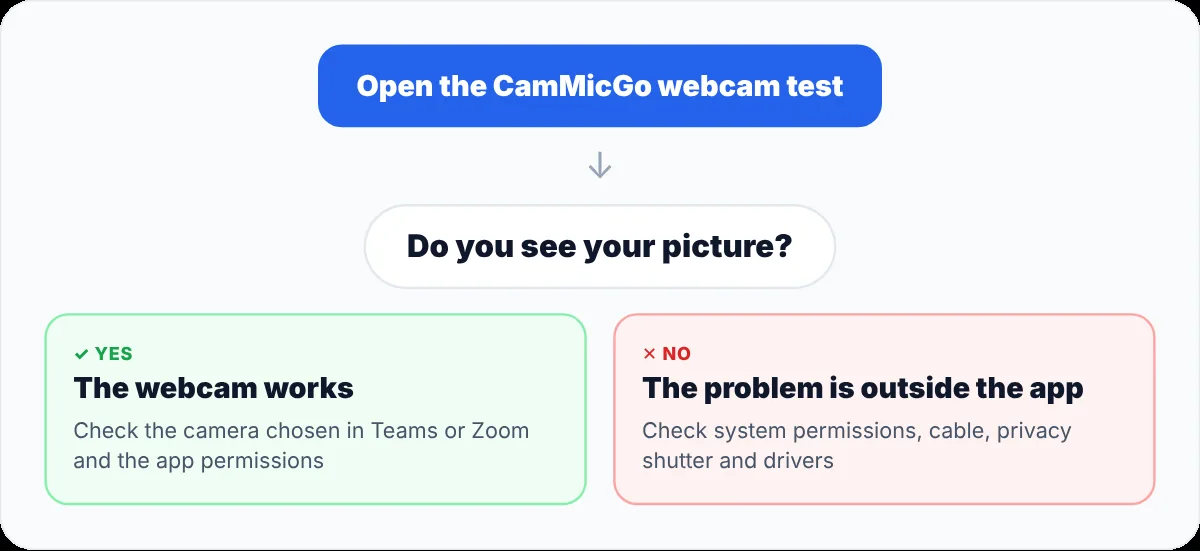
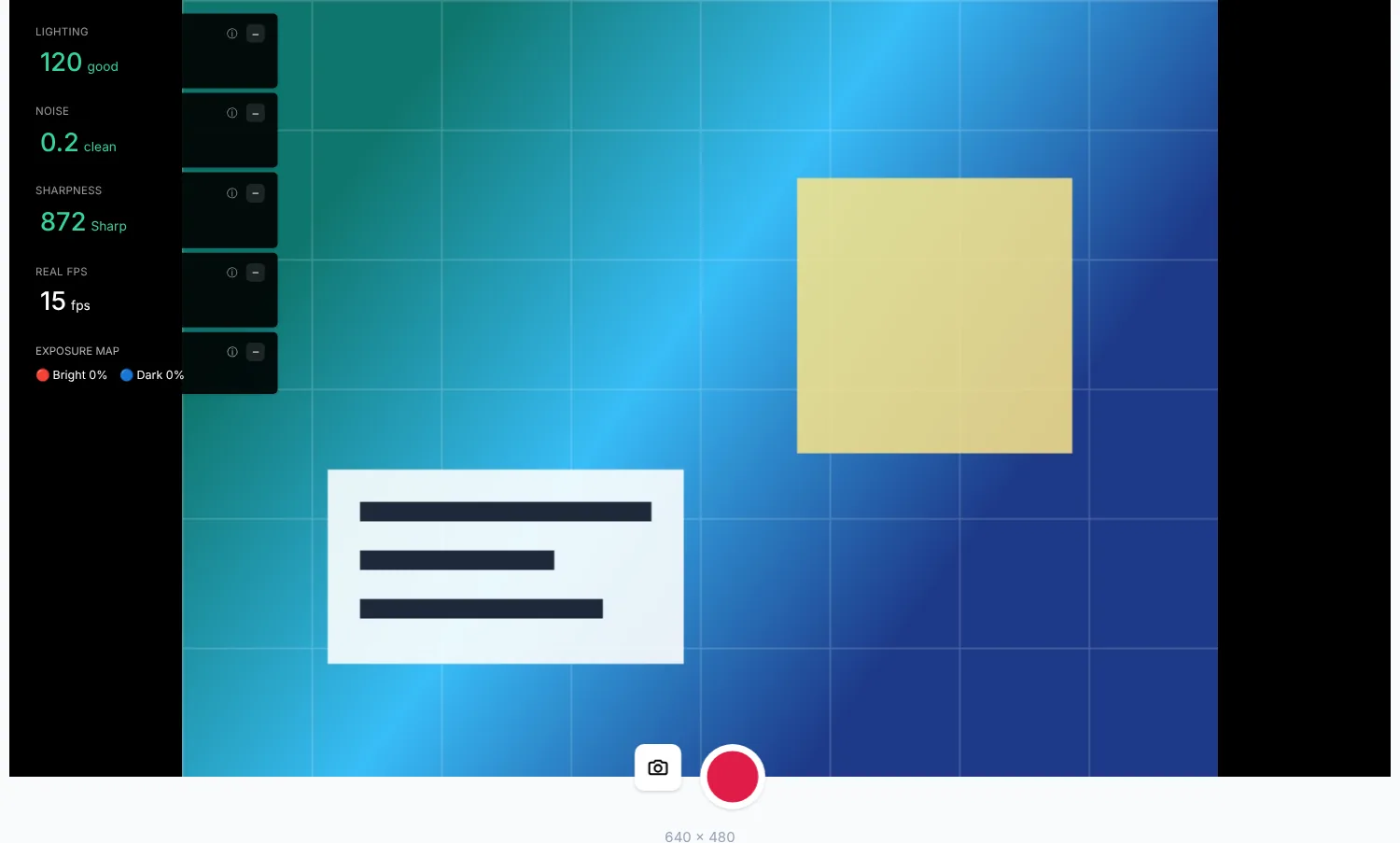
Close Teams and Zoom, then open the CamMicGo webcam test. If you see your picture, the webcam and drivers work and the problem is in the app’s settings or permissions. If the test fails too, focus on the system permissions, cables and drivers below.
2. Choose the right camera in the app
- Teams: Settings → Devices, then pick your webcam under Camera. Microsoft also offers “Make a test call” in the same place, except in Teams on the web.
- Zoom: Settings → Video, then choose your webcam in the Camera menu. Make sure the option that turns your video off when joining a meeting is not ticked if you expect your camera to start on its own.
- Laptops often list several cameras, such as an infrared camera for face sign-in or a virtual camera added by OBS or a filter app. Try each one.
3. Close apps that hold the camera
A webcam is often reserved by the first app that opens it. Microsoft lists this as the first thing to check.
- Quit Skype, FaceTime, OBS, the Windows Camera app and any browser tab with a video call.
- If you use an external webcam, unplug it and plug it back in.
- Restart the computer if the camera still does not appear.
4. Check Windows or macOS permissions
- Windows: Settings → Privacy & security → Camera. Turn on “Let apps access your camera” and the switch for Microsoft Teams. If it is already on, turn it off and on again.
- Windows also has “Let desktop apps access your camera”: it must be on for Zoom and for the classic Teams app.
- macOS: System Settings → Privacy & Security → Camera, then turn on Microsoft Teams or zoom.us. Quit and reopen the app afterwards.
5. Using Teams or Zoom in a browser
In the web versions, the browser must allow the camera for the site, and the system must allow the browser. Follow our guide for Chrome, Edge, Brave and Safari: the same steps apply.
6. Update and check the hardware
- Install Windows or macOS updates and update Teams or Zoom.
- For external or older webcams, check the driver in Device Manager on Windows, or install the manufacturer’s software.
- Open the privacy shutter and check whether your keyboard has a camera on/off key.
- On a work computer, some settings are managed by IT. If you cannot change them, contact your administrator.